 knacksnews
Perfect Your Video Framing: A Guide to Cropping in Filmora
Shooting a great video is exciting, but sometimes, you find distractions or too much space when reviewing the footage. Cropping is a simple yet powerful editing tool to remove distractions and focus on your subject. Filmora makes cropping easy, so you don't need to be a tech expert to improve your video.
Filmora is designed for beginners, making video editing straightforward. Cropping in Filmora is simple and accessible, with no complex steps. This guide will show you how to crop effectively, covering everything from the benefits to the tool itself. By the end, you’ll be confident and ready to crop your footage with ease.
Why Cropping Videos Matters More Than You Think?
Cropping might seem like a basic edit, but it can totally change how a video feels. When you crop a video, you're not just cutting out part of the frame—you’re deciding what the viewer should focus on. Whether you're tightening up a wide shot, removing cluttered backgrounds, or repurposing content for social media platforms like Instagram or TikTok, cropping can do the job without needing to reshoot anything.
In Filmora, cropping also helps keep your visual style consistent. If you're working with footage from different cameras or formats, you might need to adjust framing to make everything look like it belongs in the same video. This tool is especially useful when combining footage with different resolutions or when your camera isn't perfectly aligned.
Another use case involves converting videos from landscape to portrait or square for different platforms. For example, if you want to use a horizontal YouTube video on your Instagram story—that's a vertical format—instead of uploading an awkwardly squished or overly letterboxed clip, you can crop it to fit the screen properly and make the whole thing look intentional.
The cropping process in Filmora is also non-destructive, which means you can adjust the crop at any point. This makes it easy to experiment and find the best framing for your scene.
Step-by-Step Process of Cropping in Filmora
Cropping a video in Filmora is a visual process—it relies more on your eye than your technical know-how. Once you get a feel for it, it becomes second nature.
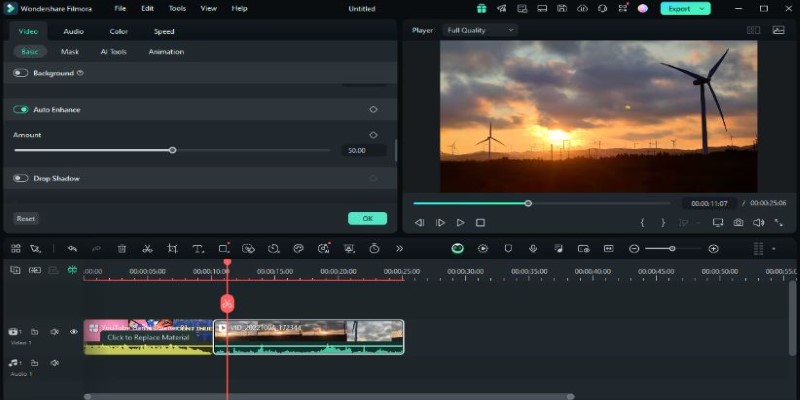
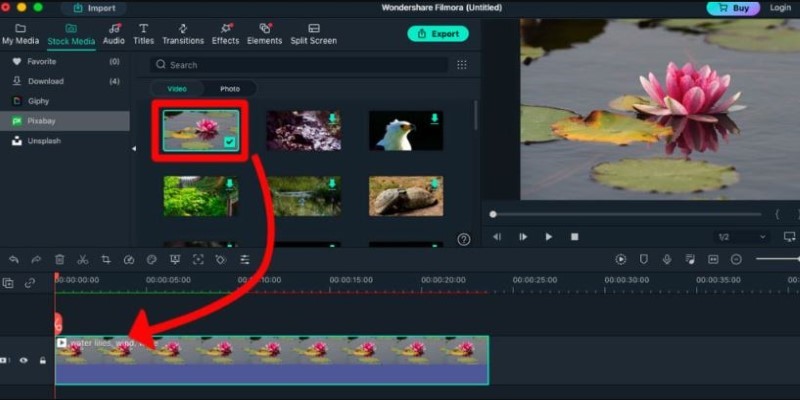
Start by launching Filmora and importing your footage. After that, drag the clip into the timeline, which is your working space where all the editing happens. Click on the clip in the timeline to select it. From here, a few editing options will pop up, including the crop icon. It looks like two overlapping right angles. Click it.
This will open a new window called the Crop and Zoom panel. You’ll see a frame over your video. This is your cropping tool. You can grab the corners of the frame to resize it or drag the whole frame to reposition it. There are also preset aspect ratios at the bottom of the panel, such as 16:9, 1:1, and 9:16. These are useful if you're editing for a specific platform or trying to keep your project uniform.
You can also choose Custom to make a freeform crop. This gives you full control but requires a careful eye to keep things balanced. While cropping, make sure the subject stays centered or aligned in a way that feels natural. Once you're happy with the framing, click OK. Filmora will crop the video based on your selection.
After cropping, it's smart to play the video in the preview window and check the result. Watch for anything that looks too tight or off-balance. If you want to make changes, just click on the crop tool again and adjust.
One thing to note: cropping will zoom into your footage to fill the frame. If you crop too much, the video may lose quality or appear pixelated. Always keep an eye on how much you're cutting out, especially if you're working with lower-resolution footage.
You can also animate your crop using the Pan and Zoom feature, which is found in the same window. This creates movement in your crop box, allowing you to slowly zoom in or pan across the video while it plays. It’s a useful trick for adding motion to static shots or drawing attention to different parts of the scene without cutting.
Things to Consider While Cropping in Filmora
Cropping in Filmora is more than trimming the frame—it significantly impacts composition, clarity, and viewer experience. Before adjusting the crop box, consider the placement of your subject. If you're filming a person, avoid cropping out key parts like their forehead or chin unless that's your intended look. When dealing with objects, ensure the frame feels balanced, with everything positioned correctly.
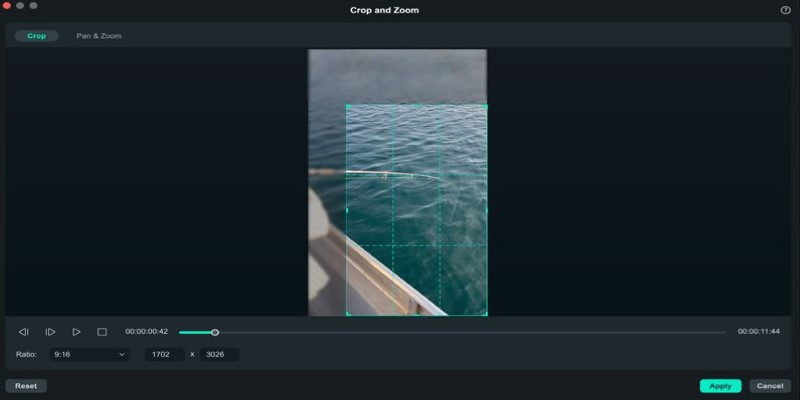
The aspect ratio you choose is also important. For YouTube content, use 16:9. For Instagram Reels or TikTok, go with 9:16, and for Instagram posts, use 1:1. This not only helps your video fit the platform properly but prevents any unwanted cropping when uploaded.
Cropping affects other elements like text, transitions, and overlays. If you’ve added these, cropping afterward could mess up the alignment. It's usually best to crop early in the editing process and then move on to other adjustments like color correction or effects.
Be mindful of video quality when cropping. Cropping zooms in, which may degrade resolution if you overdo it. Filmora handles this well, but if the quality drops, try a higher-resolution source.
Filmora’s preview feature is invaluable—always review your edits before finalizing them to catch any potential issues.
Conclusion
cropping videos in Filmora is a simple yet powerful way to enhance your footage. Whether you're adjusting for composition, removing distractions, or preparing your content for different platforms, Filmora’s easy-to-use crop tool helps you achieve a polished result. By following the steps outlined in this guide, you can quickly master cropping and improve the overall quality of your videos, ensuring they always look their best before sharing or publishing.
Related Articles

LastPass vs. 1Password: A Guide to Choosing the Best Password Manager
Top AI Background Removal Tools You Can Use Without Photoshop

HubSpot vs. Pardot: Choosing the Best Marketing Software for Your Needs
Turn Low-Res Clips Into HD: Top 5 Converter Tools
Perfect Your Video Framing: A Guide to Cropping in Filmora
Top 3D Model Converters to Change STL Files into OBJ Format Fast

How to Automate Recurring Tasks in Notion: A Step-by-Step Guide
Create Stunning Videos with These 5 Free Editors for Absolute Beginners

Base64 Encoding and Decoding Made Easy with Free Online Tools

Calendly vs. Acuity: Which Scheduling App Should You Use in 2025
Best Tools for Sharing Large Files Online with Speed and Safety