 knacksnews
Best Free Tools to Turn SVG into PNG for Your Cricut or Silhouette
SVG files are a popular choice among DIY creators, especially those using Cricut and Silhouette cutting machines. However, there are many cases where users find themselves needing to convert these SVG files into PNG format. Understanding how and when to make this conversion can help hobbyists and small business owners alike streamline their crafting projects, particularly when preparing print-then-cut designs or working with software that doesn’t support SVG files natively.
This guide provides clear, step-by-step instructions for converting SVG files into PNG format using both online tools and free software. It also offers practical advice for uploading these PNG files into Cricut Design Space and Silhouette Studio, ensuring that users get the most out of their crafting experience.
Why SVG to PNG Conversion Is Useful for Cricut and Silhouette Users
While SVG (Scalable Vector Graphics) files are excellent for cutting projects due to their editable paths and scalable nature, PNG (Portable Network Graphics) files offer advantages that SVGs do not. This is especially true for users focused on print-based designs or who are using beginner-level software.
Reasons to convert SVG to PNG include:
- Silhouette Basic Edition limitations – This version doesn’t support SVG files, requiring an upgrade or file conversion.
- Print-then-cut functionality – PNGs are ideal for this feature in Cricut Design Space.
- Better previewing – PNGs are more universally viewable and easier to share.
- Layer flattening – PNG simplifies complex SVG layers for more seamless designs.
These reasons highlight the importance of understanding when and how to make the switch between formats.
Understanding the Difference Between SVG and PNG Formats
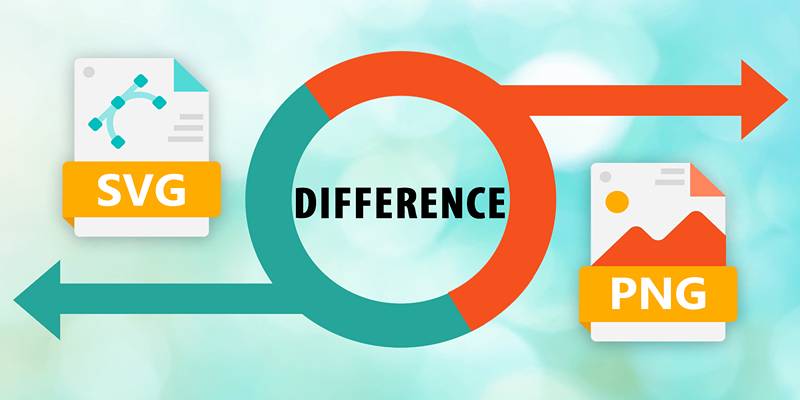
Crafters often use both file types, but each serves a different purpose. Recognizing the core differences can help users choose the right one, depending on the project.
SVG: Designed for Cutting
- Supports paths and vector editing
- Resizable without quality loss
- Used for precise cuts and detailed outlines
- Editable with design software like Inkscape or Adobe Illustrator
PNG: Designed for Printing
- Flat image format without layers or paths
- Supports transparency, making it great for overlay use
- Ideal for stickers, digital mockups, and print-then-cut projects
- Compatible with nearly every image viewer
One format isn’t better than the other—it all depends on how the file is intended to be used.
Top Free Tools for Converting SVG Files to PNG
Several user-friendly tools make this conversion process quick and accessible, with no cost and minimal learning curve.
Convertio (Online Tool)
Convertio is a reliable browser-based option that works without installation.
- Visit Convertio’s website
- Upload the SVG file
- Select PNG as the output format
- Click “Convert” and download the PNG
This method works well for quick conversions without the need to adjust the file design.
Inkscape (Free Software)
Inkscape is a robust design program suitable for users who want more control over their file conversion.
- Download and install Inkscape from inkscape.org
- Open the SVG file within the program
- Go to File > Export PNG Image
- Choose the desired export settings (size, resolution, etc.)
- Save the PNG file to the desired location.
While the learning curve is slightly steeper than online tools, Inkscape offers higher output quality and advanced design editing features.
Canva (Online Editor)
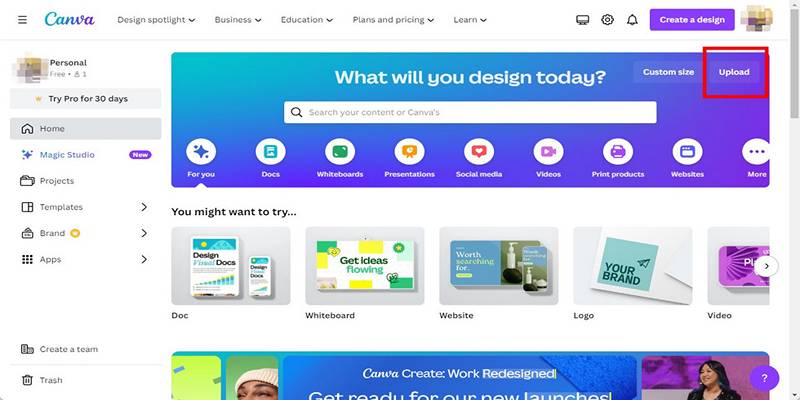
Canva is widely known for its drag-and-drop design interface and can be used for file conversions with design enhancements.
- Upload SVG into Canva
- Make any adjustments (e.g., color, text)
- Download the final file as a PNG
- Use the “transparent background” option if needed
This option is useful for crafters who want to tweak designs before using them in their cutter software.
Using PNG Files in Cricut Design Space
After converting an SVG to PNG, Cricut users can upload and work with the new file format using Cricut Design Space. It is particularly relevant for print-then-cut designs or when using files with complex layers.
To upload PNG into Cricut Design Space:
- Open Cricut Design Space
- Click “New Project” and then “Upload.”
- Choose the PNG file from the device
- Use the background remover tool if the PNG isn’t already transparent
- Select “Print Then Cut Image” or “Cut Image,” depending on the project
- Insert the image into the canvas and resize or position it
Tips:
- PNGs work best when they have a transparent background
- High-resolution PNGs (300 dpi) are recommended for crisp printing
- Flatten complex designs before uploading if using PNGs in layering projects
Using PNG Files in Silhouette Studio
Silhouette Studio Basic Edition does not support SVG files unless upgraded to the Designer Edition. However, PNG files can be imported and used with tracing tools to create cut lines.
To import and trace PNG in Silhouette Studio:
- Open Silhouette Studio
- Drag the PNG file into the workspace or use File > Open
- Use the “Trace” tool to outline the design
- Adjust the tracing settings to get clean edges
- Apply “Trace” or “Trace Outer Edge”
- Resize or move the design for your project
Things to Consider During Conversion
To ensure a successful and clean conversion from SVG to PNG, users should keep several technical and creative points in mind.
- Resolution: Set PNG export to 300 dpi if the image will be printed
- Transparency: Ensure background transparency is preserved if layering in Cricut or Silhouette
- Size: Avoid reducing the PNG too much; unlike SVG, it can become pixelated
- Layers: Flatten designs in design software before conversion to avoid unexpected visual overlaps
- Color Mode: Use RGB color mode for Cricut/Silhouette compatibility
These small considerations help avoid issues like poor print quality or image distortion.
Conclusion
Converting SVG files to PNG format is a practical skill for anyone involved in crafting with Cricut or Silhouette machines. It allows for broader creative expression, especially in print-and-cut or sticker projects. By using simple tools like Convertio, Inkscape, or Canva, users can easily manage file formats without needing premium software or advanced design knowledge. With a clear understanding of each format’s purpose, along with step-by-step instructions for conversion and uploading Cricut and Silhouette, users can confidently expand their design options.
On this page
Why SVG to PNG Conversion Is Useful for Cricut and Silhouette Users Reasons to convert SVG to PNG include: Understanding the Difference Between SVG and PNG Formats SVG: Designed for Cutting PNG: Designed for Printing Top Free Tools for Converting SVG Files to PNG Convertio (Online Tool) Inkscape (Free Software) Canva (Online Editor) Using PNG Files in Cricut Design Space To upload PNG into Cricut Design Space: Tips: Using PNG Files in Silhouette Studio To import and trace PNG in Silhouette Studio: Things to Consider During Conversion ConclusionRelated Articles
Is Wondershare DemoCreator Worth It? A Full Performance Review
How to Automate Recurring Tasks in Notion: A Step-by-Step Guide

Calendly vs. Acuity: Which Scheduling App Should You Use in 2025

Secure Your Browsing: Best Online Privacy Tools to Use in 2025
Best Free Tools to Turn SVG into PNG for Your Cricut or Silhouette

Create Stunning Videos with These 5 Free Editors for Absolute Beginners
How to Add, View, and Print Comments in Google Docs: A Step-by-Step Guide
Best Tools for Sharing Large Files Online with Speed and Safety
Perfect Your Video Framing: A Guide to Cropping in Filmora
Turn Low-Res Clips Into HD: Top 5 Converter Tools
Beeper vs. Texts: Which All-In-One Messaging App Is Right for You